ip
User Guide
Features
Keep track of your tasks
Bobo the bot enables you to keep track of your tasks by adding, viewing, editing, and deleting. Manage your to-dos, deadlines, and events in one app!

Supports natural dates
With a wide support of dates, bobo understands many date formats with bobo’s own date library- including natural dates, so you can easily enter dates.
See the Supported Natural Dates section for more details.
Generate statistics to track your progress
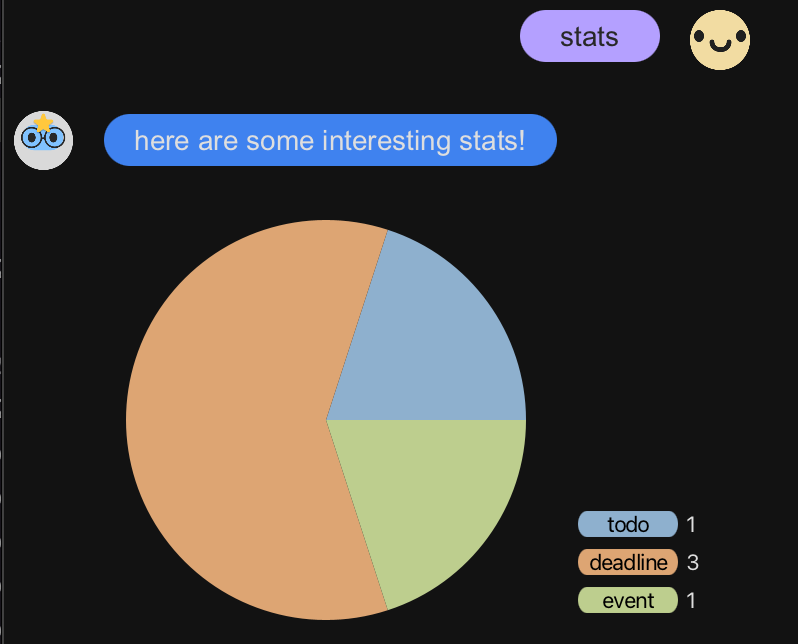
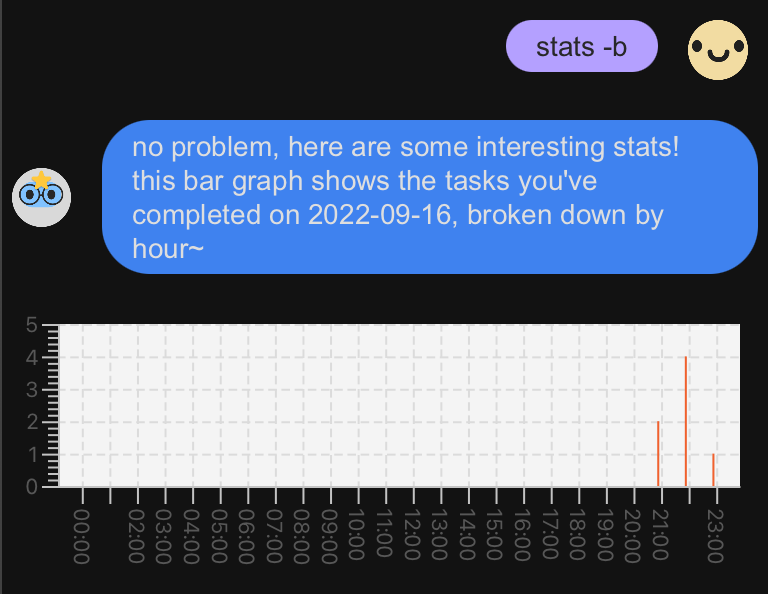
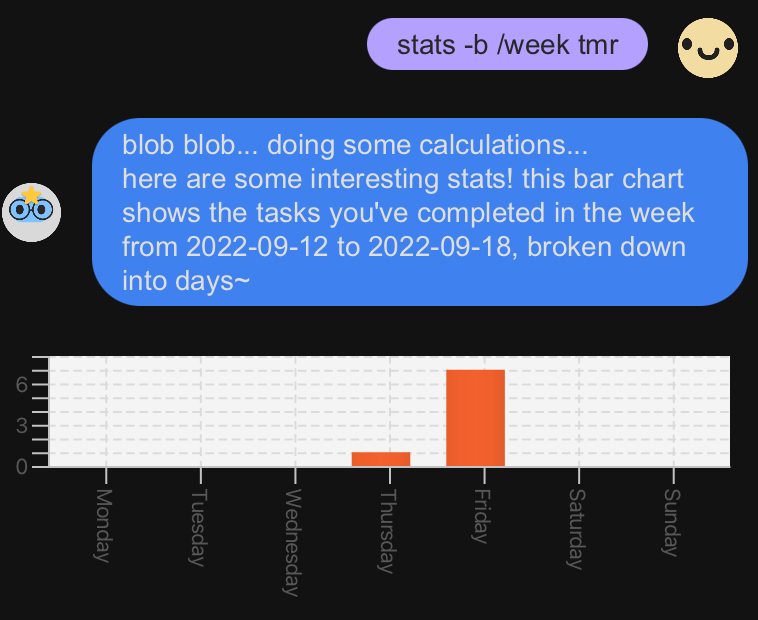
Leverage statistics about the items managed by the App! Bobo breaks down your tasks for you and allows you to keep track of your progress with data visualisation using pie charts and bar charts.
Schedule your day
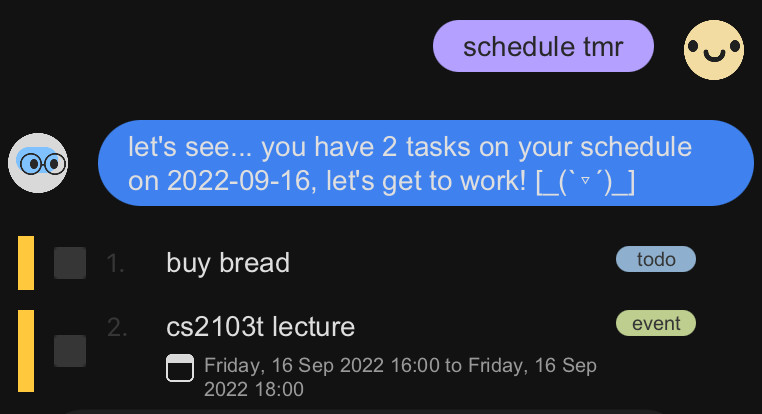
Bobo can even help you schedule your day! Just ask bobo for your schedule, so you can have a productive day and stay on top of your tasks!
Usage
list - List of all tasks
Lists out all the tasks stored by the App.
Example of usage:
list
Expected outcome:
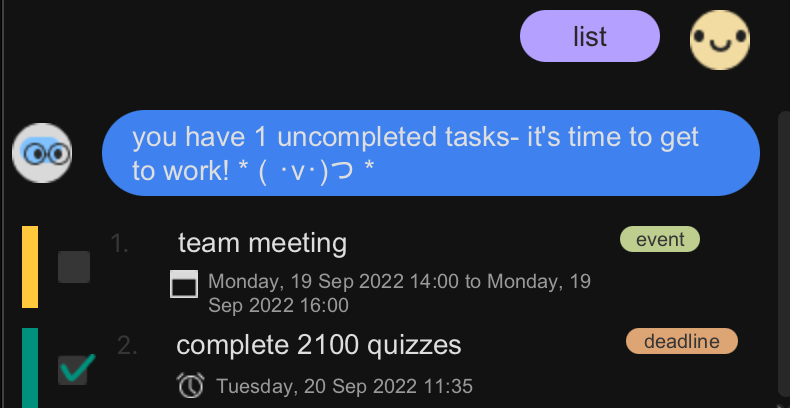
Lists the tasks stored by the app in a list view.
The coloured task bar to the left indicates the completion status of the task (green indicates that a task is complete, and yellow indicates an incomplete task).
Hover over a checked checkbox to display the completion date of the completed task.

todo DESCRIPTION - Add a to-do task
Adds a to-do task to your task list. A to-do task is a task with only a description. It has no associated datetime.
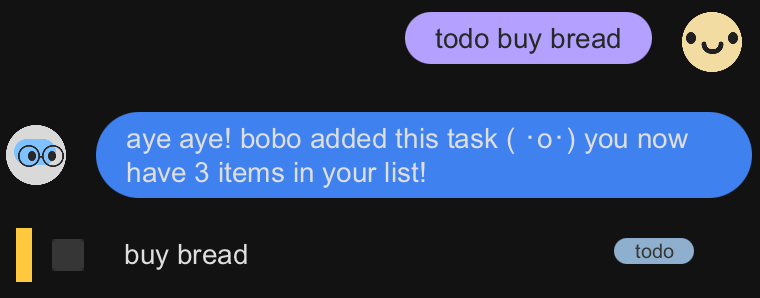
Example of usage:
todo buy bread
Expected outcome:
Adds a to-do task, with the description buy bread.
event DESCRIPTION /at EVENT_START_DATETIME /by EVENT_END_DATETIME - Add an event task
Adds an event task to your task list. An event task is a task with a description, and an associated start and end datetime.
ℹ️️ Dates in Bobo
Bobo supports many, many different date and datetimes formats like
22/03: which will be interpreted as 22nd March of the current year,24 Mar 2019 9AM: which will be interpreted as 24th March 2019 9:00AM,21 June 2016 13:50: which will be interpreted as 21st June 2016 1:50PM,12/20: which will be interpreted as December 20209AM: which will be interpreted as 9am of the current dayand many more!
The day, month, year, and time fields will be defaulted to the current day, month, year, and time respectively, if they are not specified.
Bobo also supports natural dates, with commands like
today,now,night,morning,evening,monday,Tues,tmr,yesterday.You may find the complete list of natural date supported by Bobo here.
️⚠️ Event start date cannot be after end date
Do note that valid events in Bobo cannot have start dates that are after end dates.
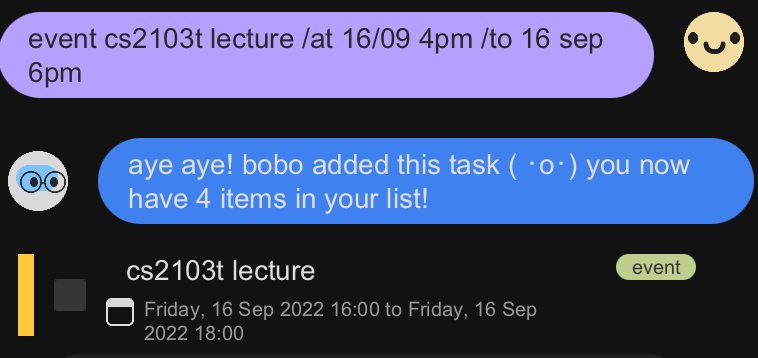
Example of usage:
event cs2103t lecture /at 16/09 4pm /to 16 sep 6pm
Expected outcome:
Adds an event task, with the description cs2103t lecture
with start time 16 September 2022, 4pm and end time
16 September 2022, 6pm (assuming the event was created in 2022).
deadline DESCRIPTION /by DUE_DATE - Add a deadline task
Adds a deadline task to your task list. A deadline task is a task with a description, and an associated due date by which the task should be completed.
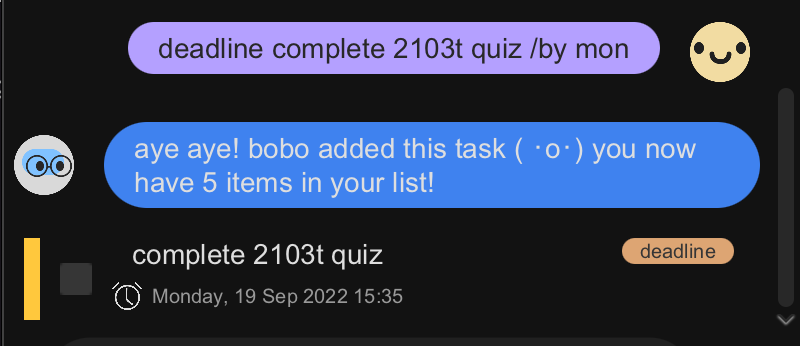
Example of usage:
deadline complete cs2103t quiz /by mon
Expected outcome:
Adds a deadline task, with the description complete cs2103t quiz
due on the next Monday on which the task was created (eg: if the
deadline task was created on 15 September 2022 3:35PM, the due date
will be set on 19 September 2022 15:35).
mark TASK_NUMBER - Mark a task as done
Marks the task associated to the task number in your task list as done. The completion date of the task will be set the current date and time.
If the task was already completed, the previous completion time will simply be overridden to the current datetime.
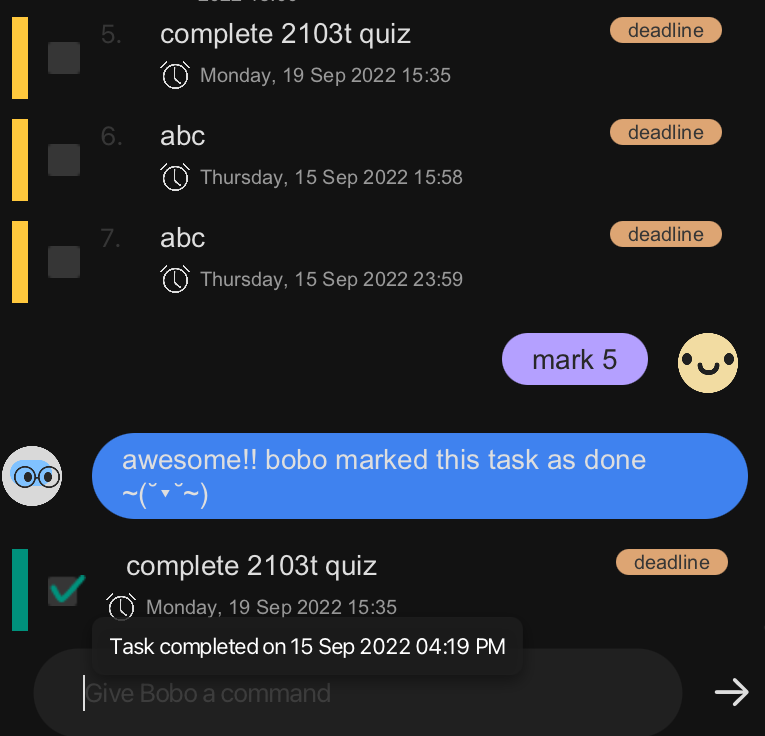
Example of usage:
mark 5
Expected outcome:
Marks the 5th item of your task list (the to-do task with
description complete 2103t quiz in the image above) as done.
The completion date of the task will be set to the current date time, as revealed when hovering over the checked check box.
unmark TASK_NUMBER - Mark a task as not done
Marks the task associated to the task number in your task list as not completed.
If the task was previously marked completed, the completion date time of the task will be removed.
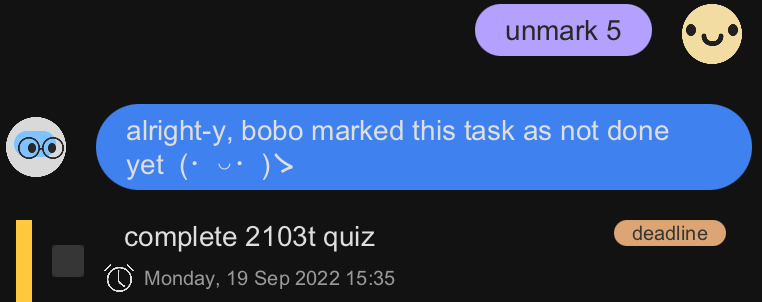
Example of usage:
unmark 5
Expected outcome:
Marks the 5th item of your task list (the to-do task with
description complete 2103t quiz in the image above) as not done.
find TASK_DESCRIPTION_KEYWORD - Find tasks containing a specified keyword or phrase
Find tasks in your task lists with description containing the specified
keyword or phrase TASK_DESCRIPTION_KEYWORD.
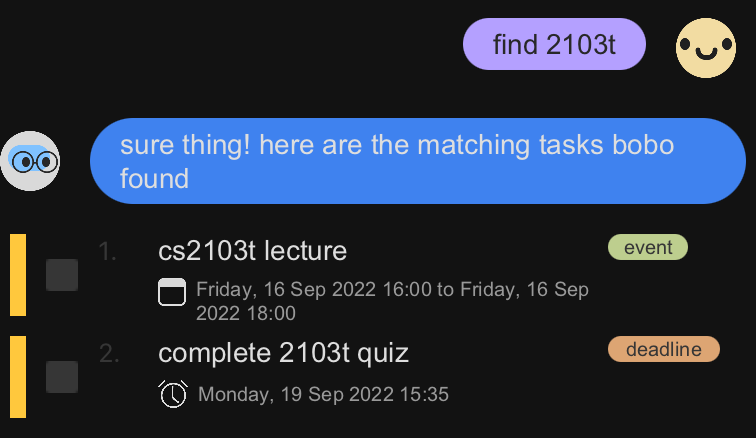
Example of usage:
find 2103t
Expected outcome:
A list of tasks with descriptions that contain 2103t.
edit TASK_NUMBER EDITED_TASK - Edits/ Updates a task
Edits (ie: updates) the task in your task list associated to the specified task number.
The usage depends on the type of task.
Editing a todo task: edit TASK_NUMBER DESCRIPTION
Editing a deadline task: edit TASK_NUMBER DESCRIPTION /by DUE_DATE
Editing an event task: edit TASK_NUMBER DESCRIPTION /at START_DATETIME /to END DATETIME
Note that this command only allows you to update the details of the specified task. This means that you cannot change the task type with this command.
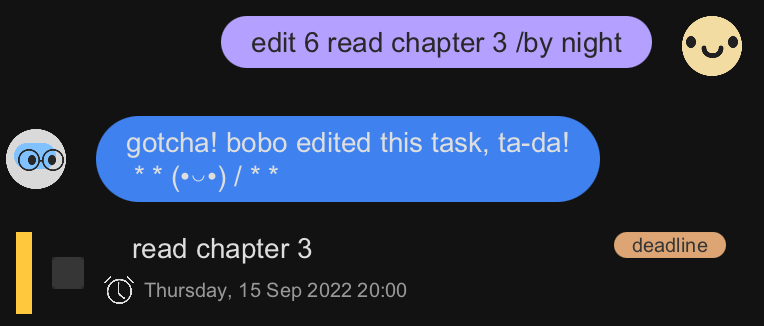
Example of usage:
edit 6 read chapter 3 /by night
Expected outcome:
Edits the task with task number 6 (which in this case is a
deadline task) with the description read chapter 3 and
due date night (which is a natural date for 8PM of the
current day).
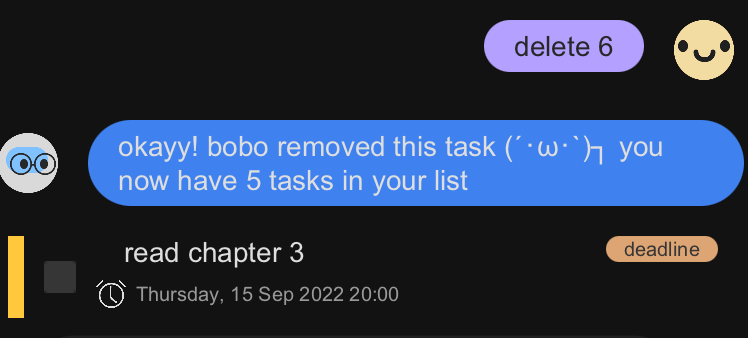
delete TASK_NUMBER - Delete a task
Removes the task with the associated task number TASK_NUMBER
in the task list.
Example of usage:
delete 6
Expected outcome:
Modifies your task list so that the specified task is removed from the task list.
stats [-STATISTIC_TYPE_FLAG] - Generate statistics
Generates statistics for the completed tasks stored in your task list. Currently supports two types of data visualisation, pie chart and bar graph. See the following sections on how to generate each statistic.
Note that if no [-STATISTIC_TYPE_FLAG] is provided (ie: command
stats is typed), Bobo will simply generate a pie chart.
Example of usage:
stats
Expected outcome:
A pie chart breaking down completed tasks by their task type will be generated.
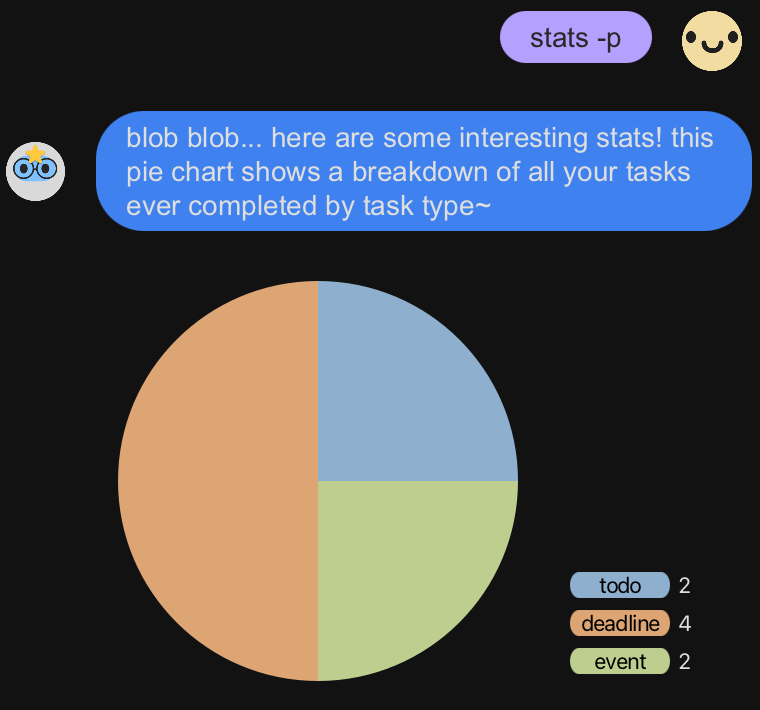
stats [-p] - Generate statistics in a pie chart
Generates the breakdown of all completed tasks by their task type in a pie chart. If there are no completed tasks, no pie chart will be generated.
Example of usage:
stats -p
Expected outcome:
A pie chart breaking down completed tasks by their task type will be generated.
stats -b [/BAR_CHART_TYPE] [DATE] - Generate statistics in a bar chart
Generates the breakdown of completed tasks by their completion date in a bar chart. If there are no completed tasks, no bar chart will be generated.
There are two types of bar charts supported by Bobo. You can
view either daily (/day) or weekly (/week) statistics.
You can specify the type of bar chart to generate with the
/BAR_CHART_TYPE tag. If no /BAR_CHART_TYPE tag is specified, Bobo will default to a
daily-type bar chart statistic.
In addition, you can also specify the date to view the statistics for. If no date is specified, Bobo will default to the current day.
For a day-type bar chart, this means viewing the breakdown of tasks completed by hour for that specified day.
For a week-type bar chart, this means viewing the breakdown of tasks completed by week for the week the specified day falls within.
Example of usage:
stats -b /day yesterday
Expected outcome:
A bar chart breaking down completed tasks by hour yesterday will be generated.
Example of usage:
stats -b /week 21/09/22
Expected outcome:
A bar chart breaking down completed tasks by day on the week of 21st September 2022 will be generated.
schedule [DATE] - Get the daily schedule
Gets the daily schedule for the specified date. This schedule will show:
- All incomplete to-dos (since to-dos have no associated datetime, they will be assumed to be on the schedule for the day)
- All deadlines that are overdue (incomplete and the due date has passed, relative to the specified date) or are due on the specified date (even if they are completed)
- All events that are overdue (incomplete but the event has passed, relative to the specified date), or that takes place during the specified date (even if they are completed)
ℹ️️ If no date is specified (ie: input command
schedule), Bobo assumes the schedule is to be generated for the current day (schedule today).
Example of usage:
schedule tmr
Expected outcome:
A list of tasks scheduled for the next day.
bye - Save data and exits Bobo
Saves the task list locally and exits the program.
Example of usage:
bye
Expected outcome:
Saves the task list and exits from Bobo.
Supported Natural Dates
| Natural Date | Date | Time |
|---|---|---|
now |
Today | Current time |
today/ tdy |
Today | 23:59 |
morning |
Today | 08:00 |
evening |
Today | 18:00 |
night |
Today | 20:00 |
tomorrow/ tmr |
Tomorrow | Current time |
yesterday/ yst |
Yesterday | Current time |
next week/ next wk |
Next week (7 days later) | Current time |
last week/ last wk |
Last week (7 days before) | Current time |
next month/ next mth |
1 month later | Current time |
last month/ last mth |
1 month ago | Current time |
next year/ next yr |
1 year later | Current time |
last year/ last yr |
1 year ago | Current time |
next year/ next yr |
Next year (same date, same month, next year) | Current time |
mon/ monday |
The next Monday | Current time |
tues/ tuesday |
The next Tuesday | Current time |
wed/ weds/ wednesday |
The next Wednesday | Current time |
thur/ thurs/ thursday |
The next Thursday | Current time |
fri/ friday |
The next Friday | Current time |
sat/ saturday |
The next Saturday | Current time |
sun/ sunday |
The next Sunday | Current time |